
Running a language model on your own computer used to mean an afternoon of Python environments, CUDA versions and GitHub issues with titles like “segfault on startup, please help.” Ollama changed that. You install one app, type one command, and a few minutes later you’re chatting with an open model that runs entirely on your machine. No API key, no monthly bill, and nothing you type leaves your laptop.
This Ollama tutorial is written for people who have never run a local LLM before. We’ll install Ollama, pick a model that actually fits your hardware (the step most guides skip), chat with it in the terminal, call it from Python and JavaScript, and finally build a small custom model with its own instructions. If your computer is from the last five years or so, you can follow along.
Why run a local LLM at all?
Cloud models like Claude, GPT and Gemini are still smarter than anything you can run on a normal laptop, so it’s fair to ask why you’d bother. A few reasons come up again and again:
- Privacy. Client contracts, medical notes, internal code: some data simply shouldn’t leave your machine, and with a local LLM it never does.
- Cost. Once the model is downloaded, every request is free. For batch jobs like tagging thousands of documents, that adds up fast.
- Offline work. Trains, planes, flaky hotel Wi-Fi. A local model doesn’t care.
- Learning. Poking at a model you control is the best way to understand context windows, quantization and prompts.
- Prototyping. You can build against the local API for free and switch to a cloud model later.
The trade-off is quality and speed. Small local models are good at summarising, rewriting, extracting data and simple coding help. They’re noticeably weaker at long, tricky reasoning. Knowing that up front saves a lot of disappointment.
Step 1: Install Ollama
Head to ollama.com/download.
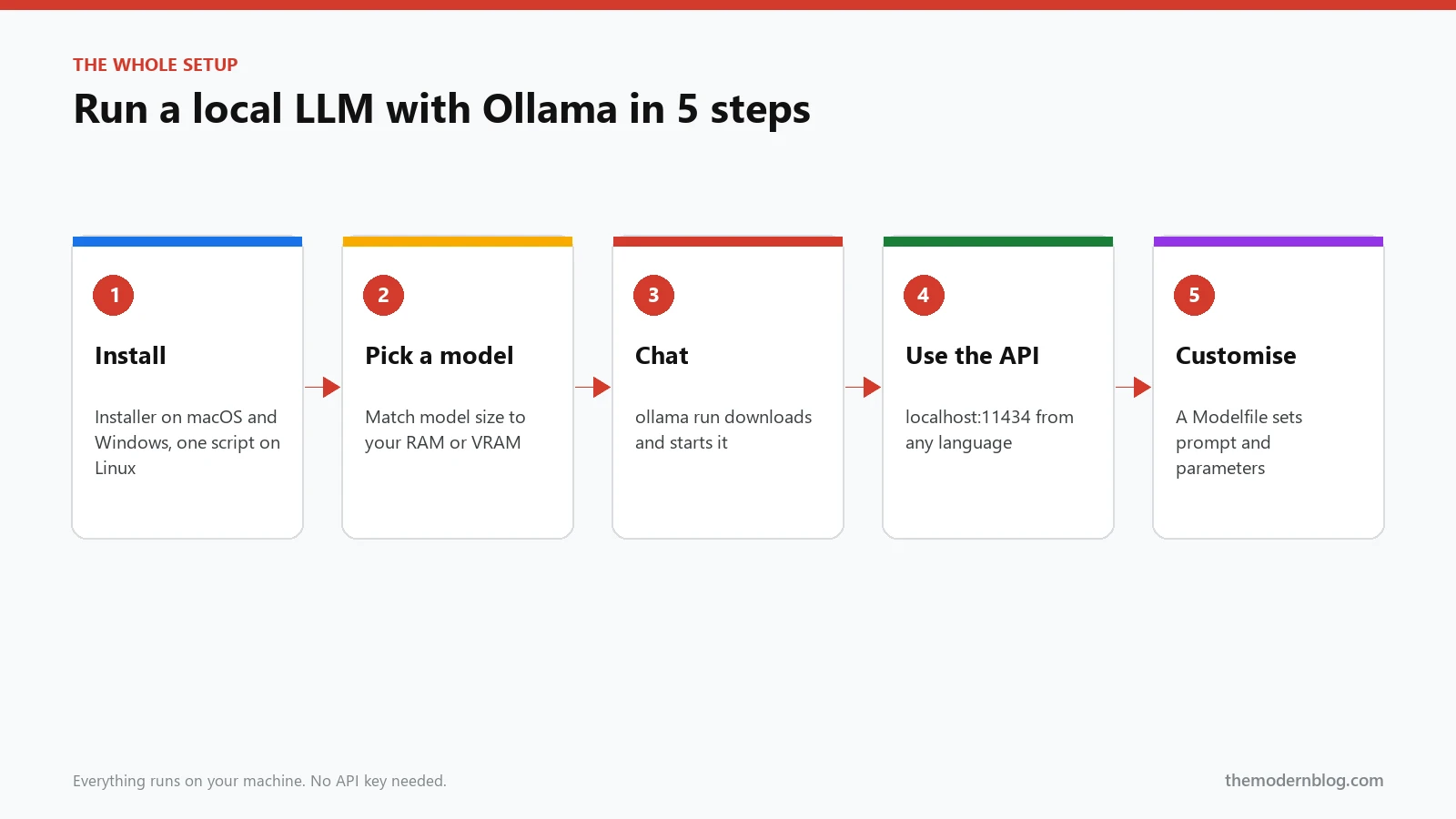
- macOS and Windows: download the installer and run it like any other app. Ollama starts in the background and adds itself to your menu bar or system tray. Recent versions also include a simple chat window, but we’ll use the terminal because that’s where the useful stuff is.
- Linux: run the official install script.
curl -fsSL https://ollama.com/install.sh | sh
As with any script piped into your shell, it’s worth opening the URL in a browser first and skimming what it does. On Linux it installs a systemd service, so Ollama starts automatically at boot.
Check that it worked:
ollama --version
If you get a version number back, you’re done with the hardest part. Seriously.
Step 2: Pick a model that fits your hardware
This is the step that decides whether your local LLM feels snappy or painfully slow. The rule is simple: the whole local model needs to fit in memory, ideally in your GPU’s memory (VRAM). If it doesn’t fit in VRAM, Ollama splits it between GPU and CPU, which works but is much slower. If it doesn’t fit in RAM at all, it won’t run.
Most models in the Ollama library are downloaded in a 4-bit quantized form by default. Quantization stores the model’s numbers with less precision, which shrinks the file to roughly a quarter of its original size with only a small hit to quality. Here’s a rough guide to what that means in practice:
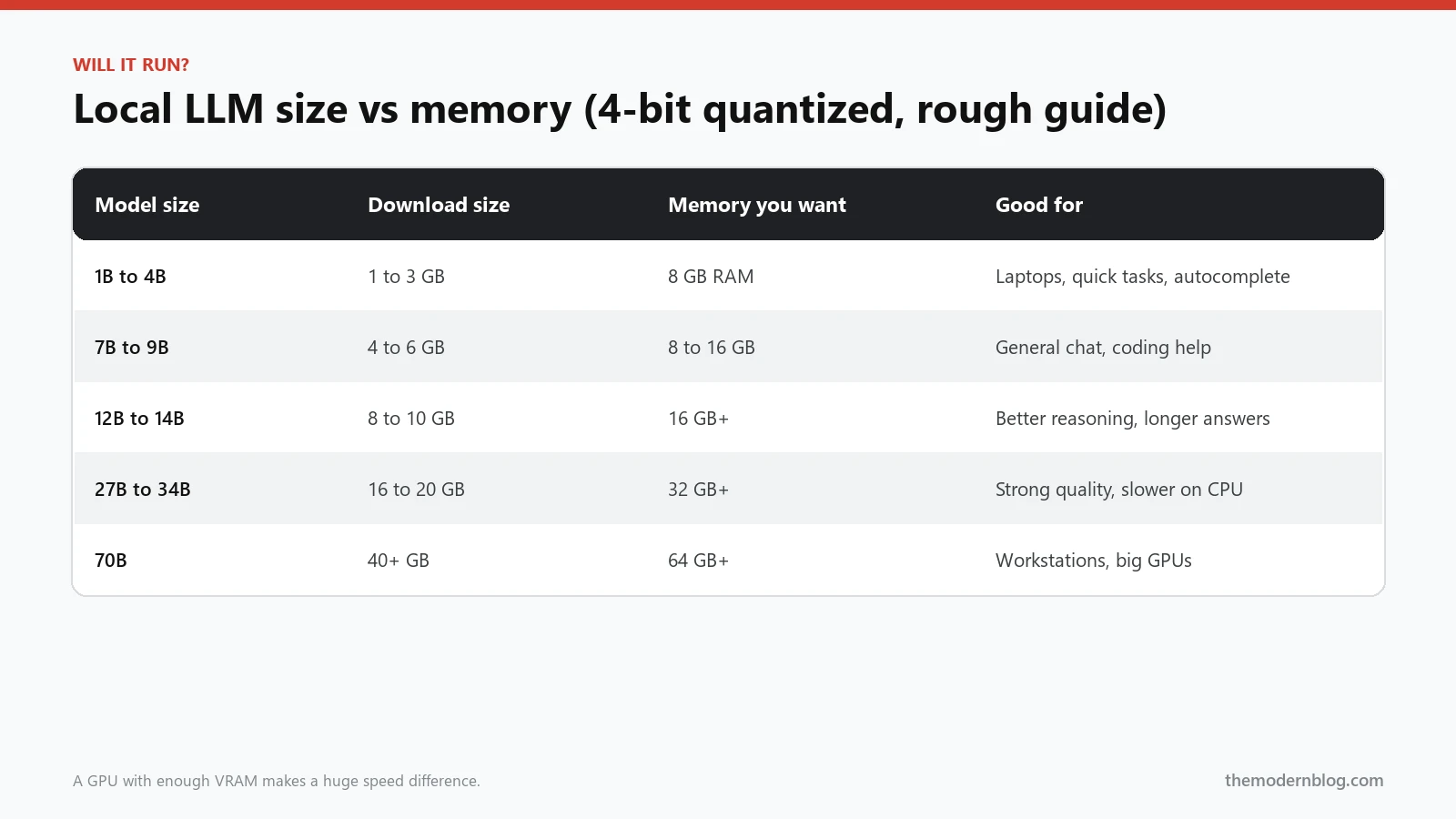
Some sensible starting points, depending on your machine:
- 8 GB laptop:
llama3.2(3B) orgemma3:4b. Small, fast, fine for summaries and quick questions. - 16 GB laptop or a GPU with 8 GB+ VRAM:
llama3.1:8b,qwen2.5-coder:7bfor code, ormistral. - 32 GB+ or a 24 GB GPU: something in the 14B to 32B range, like
qwen2.5-coder:32borgemma3:27b.
New models get added to the Ollama model library constantly, so treat these names as examples. Each library page lists the available sizes and their download size, which is your best hint for memory use. Apple Silicon Macs are a special case and a pleasant one: because the GPU shares the main memory, a 32 GB MacBook can run models that would need an expensive graphics card on a PC.
Step 3: Run your first local LLM
Now the fun part. Open a terminal and type:
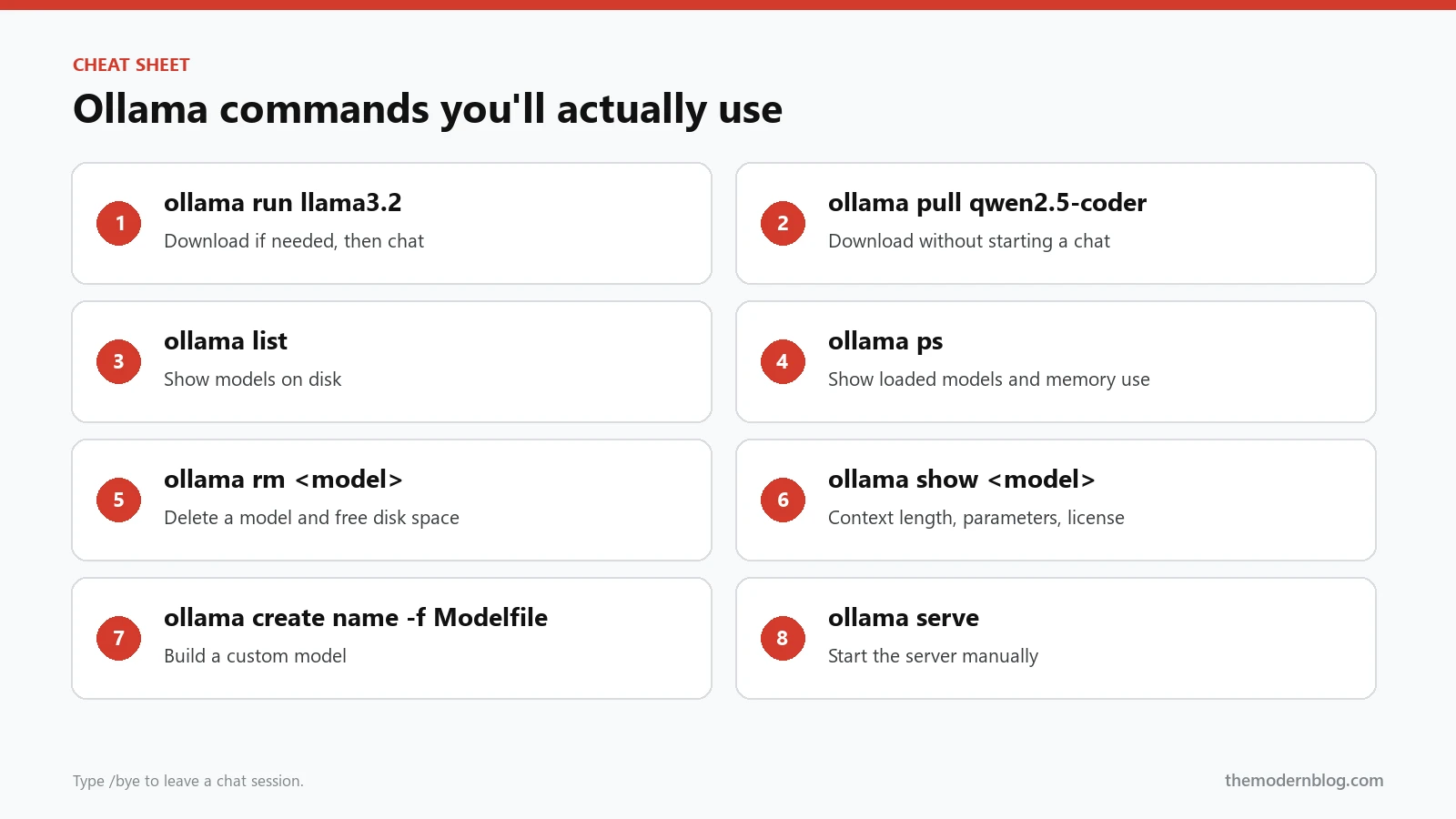
ollama run llama3.2
The first time, Ollama downloads the model (about 2 GB for this one), then drops you into a chat prompt. Ask it something:
>>> Explain what a reverse proxy is in two sentences.
Answers stream in word by word, just like ChatGPT, except it’s all happening on your machine. A few handy things inside the chat:
/byeexits the chat./set system "You are a terse senior engineer."changes the system prompt for this session./show infoprints details about the loaded model.- Three quotes (
""") let you paste multi-line text.
You can also pass a prompt directly, which is great for scripts:
ollama run llama3.2 "Write a haiku about Kubernetes"
cat notes.txt | ollama run llama3.2 "Summarise these notes as five bullet points"
The second line is where a local LLM starts to feel like a real tool. Any text you can pipe, you can process.
Step 4: Use the Ollama API from your code
Behind the scenes, Ollama runs a small web server on http://localhost:11434. The terminal chat is just one client. Your own apps can talk to the local model too.
With curl
curl http://localhost:11434/api/chat -d '{
  "model": "llama3.2",
  "messages": [{"role": "user", "content": "Why is the sky blue?"}],
  "stream": false
}'
With Python
Install the official client with pip install ollama, then:
import ollama

response = ollama.chat(
    model="llama3.2",
    messages=[
        {"role": "system", "content": "You answer in plain English, max 3 sentences."},
        {"role": "user", "content": "What does a load balancer do?"},
    ],
)
print(response["message"]["content"])
With the OpenAI SDK (the handy trick)
Ollama also exposes an OpenAI-compatible endpoint at /v1. That means code written for the OpenAI API can point at your local LLM with a two-line change, which is perfect for prototyping:
import OpenAI from "openai";

const client = new OpenAI({
  baseURL: "http://localhost:11434/v1",
  apiKey: "ollama", // required by the SDK, ignored by Ollama
});

const res = await client.chat.completions.create({
  model: "llama3.2",
  messages: [{ role: "user", content: "Give me 3 names for a coffee shop" }],
});
console.log(res.choices[0].message.content);
Build your feature against this for free, and when you’re ready for production, swap the base URL and model name for a hosted provider. The full list of endpoints is in the Ollama API docs on GitHub.
Step 5: Create a custom model with a Modelfile
Typing the same system prompt into your local LLM every time gets old. A Modelfile lets you bake instructions and settings into a named model. Create a file called Modelfile:
FROM llama3.1:8b

PARAMETER temperature 0.3
PARAMETER num_ctx 8192

SYSTEM """
You are a code reviewer. Point out bugs, security problems and unclear names.
Be direct. Use short bullet points. Do not rewrite the whole file.
"""
Then build and run it:
ollama create code-reviewer -f Modelfile
ollama run code-reviewer
It doesn’t download the base model again. The custom model is a thin layer on top, so you can make as many as you like. A low temperature keeps answers consistent, which is what you want for review or data extraction. Save higher values (0.7 and up) for brainstorming.
About that num_ctx line
This one catches almost everybody. num_ctx is the context window, the amount of text the model can see at once. Ollama’s default is fairly small to save memory, even when the model itself supports much more. If you paste a long document and the answer seems to ignore the beginning, the start of your text probably got cut off. Raising num_ctx fixes it, at the cost of more memory. Run ollama show llama3.1:8b to see the maximum the model supports.
How Ollama works under the hood
You don’t need to know this to run a local LLM, but it explains a lot of its behaviour, so here’s the short version.
Ollama is built on top of llama.cpp, an open source engine that runs language models efficiently on ordinary CPUs and GPUs. Models are stored in a format called GGUF, which packs the model weights and metadata into a single file. When you pull a model, you’re downloading a GGUF file (plus a small config) into Ollama’s model folder.
The tag after the colon in a model name tells you which version you’re getting. llama3.1:8b is the 8 billion parameter version with the default quantization. Many library pages also list tags with explicit quantization levels, like q4_K_M or q8_0. Lower numbers mean smaller files and slightly lower quality. For most people the default is the right balance, and if you have memory to spare, a q8 version is a cheap quality bump.
When a request comes in, Ollama loads the model into memory (GPU first, then CPU for whatever doesn’t fit), processes your prompt, and streams tokens back. The model stays loaded for a few minutes in case you send another request, then gets unloaded to free memory. That’s why the first answer after a break takes longer than the rest.
You can also bring your own models. If you’ve downloaded a GGUF file from Hugging Face, a Modelfile with FROM ./my-model.gguf turns it into an Ollama model with one ollama create command. Many Hugging Face GGUF repositories can even be pulled directly with ollama run hf.co/username/repository.
5 useful things to do with a local LLM this week
Installing it is the easy part. The question most people have after this Ollama tutorial is “okay, now what?” Here are a few small, practical uses that work well even with a modest 7B or 8B model.
- Summarise long files. Meeting transcripts, log files, long email threads. Pipe them in with
cat file.txt | ollama run llama3.1:8b "Summarise this"and get the gist in seconds. Raisenum_ctxfirst for long inputs. - Write commit messages.
git diff --staged | ollama run qwen2.5-coder:7b "Write a one-line commit message for this diff"is surprisingly good, and your code never leaves your machine. - Extract structured data. Ask for JSON with specific fields from invoices, CVs or support tickets. Ollama’s API has a
formatoption that forces valid JSON output, which makes the result easy to load in a script. - Private document Q&A. Combine a local embedding model (the library has several, like
nomic-embed-text) with a chat model to search your own notes. Everything stays local, which matters for anything confidential. - Test prompts before paying for them. Iterate on a prompt locally for free, then run the final version against a bigger cloud model. You’ll find most of the obvious problems with your prompt without spending a cent.
None of these need a powerful machine. They’re the kind of small, repetitive jobs where a local LLM pays for itself in time saved, even if it isn’t as clever as the big cloud models.
Making a local LLM faster
If your local LLM crawls out one word per second, check these in order:
- Run
ollama ps. The PROCESSOR column shows how much of the model is on the GPU. “100% GPU” is what you want. A CPU/GPU split means the model is too big for your VRAM, so try a smaller size. - Close other GPU-hungry apps. Browsers with lots of tabs and games eat VRAM too.
- Lower
num_ctxif you raised it a lot. A huge context window takes memory away from the model. - Try a smaller model. A 7B model at full GPU speed usually beats a 14B model running half on the CPU, both in speed and in how pleasant it is to use.
- Keep the model loaded. Ollama unloads idle models after a few minutes. The first request after that is slow while it loads again. The
OLLAMA_KEEP_ALIVEenvironment variable controls how long models stay in memory.
Common Ollama problems and quick fixes
“Error: could not connect to ollama app”
The background server isn’t running. On macOS and Windows, open the Ollama app. On Linux, run sudo systemctl start ollama, or start it manually with ollama serve.
The model downloads fill up my main drive
Models are stored in your home folder by default. Set the OLLAMA_MODELS environment variable to a folder on a bigger drive, restart Ollama, and new downloads go there.
I want to use Ollama from another computer on my network
By default Ollama only listens on localhost, which is the safe choice. Setting OLLAMA_HOST=0.0.0.0 makes it listen on all interfaces. Be careful with this: the API has no authentication, so anyone who can reach that port can use your machine’s GPU. Only do it on a trusted network, or put it behind a reverse proxy with authentication. Never expose port 11434 straight to the internet.
Answers are worse than ChatGPT
That’s expected with a small local model, not a setup problem. Give the model a clearer, more specific prompt, use a bigger model if your hardware allows, or use a model trained for your task (a coder model for code, for example).
Where to go from here
A good habit at this point is to keep two or three models around and compare them on your own tasks. Run the same prompt through a small local model and a bigger one, and see where the extra size actually helps. For a lot of everyday jobs you will find the small local LLM is good enough, which means faster answers and more free memory for everything else. For the jobs where it clearly struggles, that is your signal to use a bigger local model or a cloud API for that one step.
Disk space is the other thing to keep an eye on. Models are large, and it is easy to collect 50 GB of them after a few weeks of experimenting. Run ollama list now and then and remove the ones you no longer use with ollama rm.
Once you’re comfortable with the basics, a local LLM becomes a building block. You can connect it to a coding assistant in your editor, use it for private document search, or run it inside your own apps. If you’re interested in how models use tools, our explainer on AI agent tool calling is a good next read, since many Ollama models now support tool calls through the same API. And if you want to plug local models into agents and editors, the Model Context Protocol explained covers how tools and context get wired together.
Frequently asked questions
Is Ollama free?
Yes. Ollama is open source and free to use, and the models in its library are free to download. Each model has its own license, though, so check it (ollama show prints it) before using a model in a commercial product.
Do I need a GPU to run a local LLM?
No. Ollama runs on the CPU when there’s no supported GPU. Small models (1B to 4B) are usable on a CPU alone. For 7B and bigger, a GPU or an Apple Silicon Mac makes the experience far more pleasant.
Is my data private with Ollama?
Prompts and answers stay on your machine when you run a local model. The only network activity is downloading models and checking for updates. That privacy goes away if you expose the API to a network, so keep it on localhost unless you’ve secured it.
Can I use Ollama models with LangChain or LlamaIndex?
Yes, both have Ollama integrations, and anything that supports the OpenAI API format can use the /v1 endpoint shown above.